Contents
How to have a look at the applicants' CVs in my back office?
Preselecting or declining applicants
Contacting applicants
Customize and save a reply email template
Export applicants' CVs and emails
How to have a look at the applicants' CVs in my back office?
JobTeaser offers an application management interface for your job ads.
It enables you to fully manage your applications from your JobTeaser back-office (CV consultation, categorization of applications, reply to applicants) and to keep a history of them.
To access it, click on the 'Jobs' section of your back-office.
Click on the 'Applicants' button of the ongoing or expired job ad for which you want to manage applications.
You will still be able to access the applications submitted for a job ad that is expired.

Then, take a look at the CVs by clicking on 'See CV'.

You can also read the application message sent with the CV by clicking on 'See application message'.

Preselecting or declining applicants
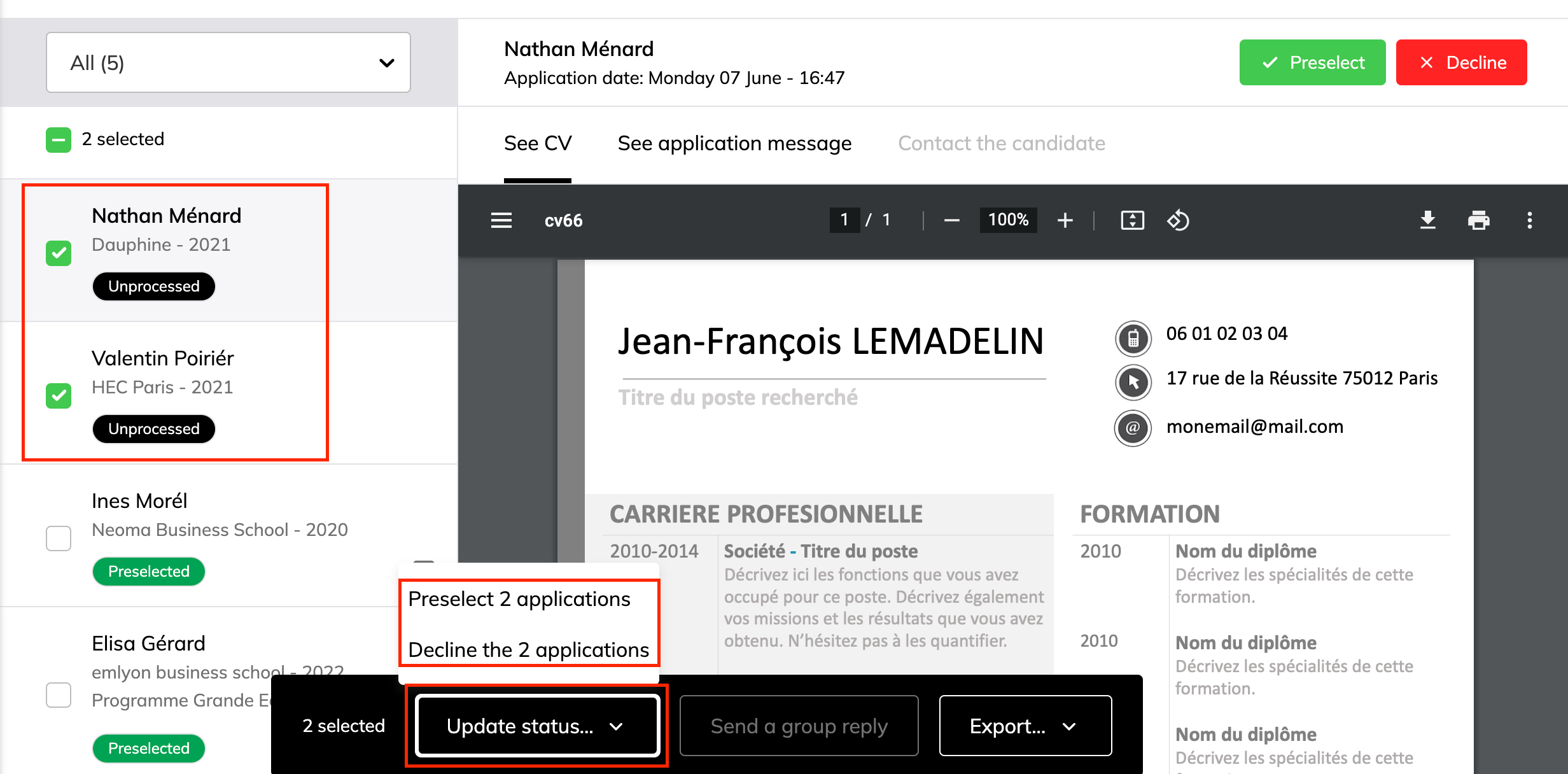
Select the applications by clicking on 'Preselect' or 'Decline' applicant by applicant or as a group.
To preselect or decline applicants one by one, click on the applicant and then on 'Preselect' or 'Decline'.

To preselect or decline applicants as a group, tick the applicants you want to preselect or decline and click on 'Update status'.
Then choose to preselect or decline the group.
Note: If you have already contacted candidates, you cannot update their status.
Contacting applicants
Declining or preselecting an application does not imply that an automatic e-mail will be sent informing the applicant.
You can therefore reply to applicants individually or as a group.
- Contacting an applicant individually
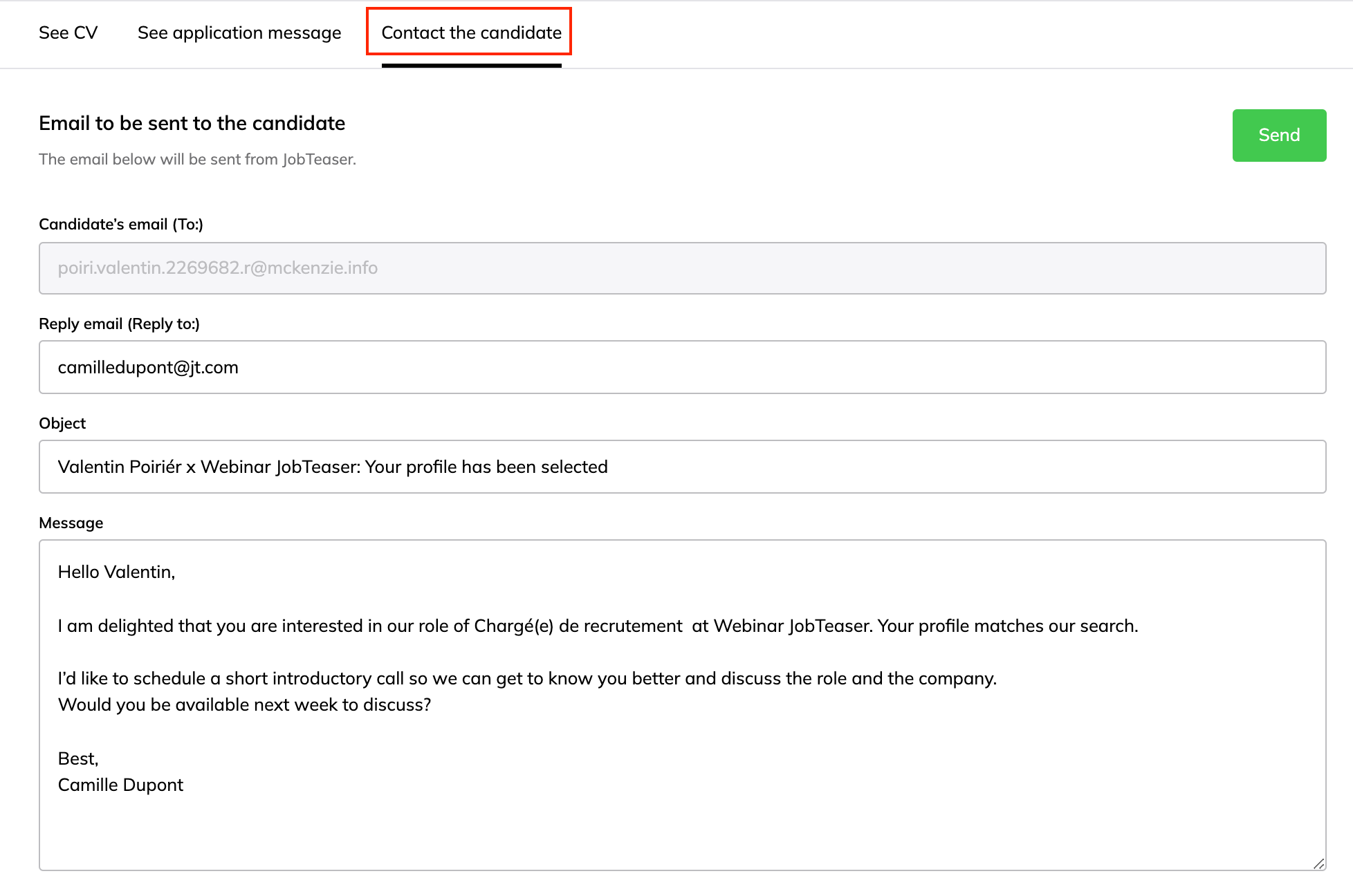
Click on the applicant and then on 'Contact the candidate'.
An editable email template is then proposed:
If you decline an application, you can send an e-mail without your address appearing by ticking the box below:

Then click on 'Send' to send your message to the applicant.

- Sending a group reply
Select all the applicants you want to decline, for example, and then click on 'Send a group reply'.
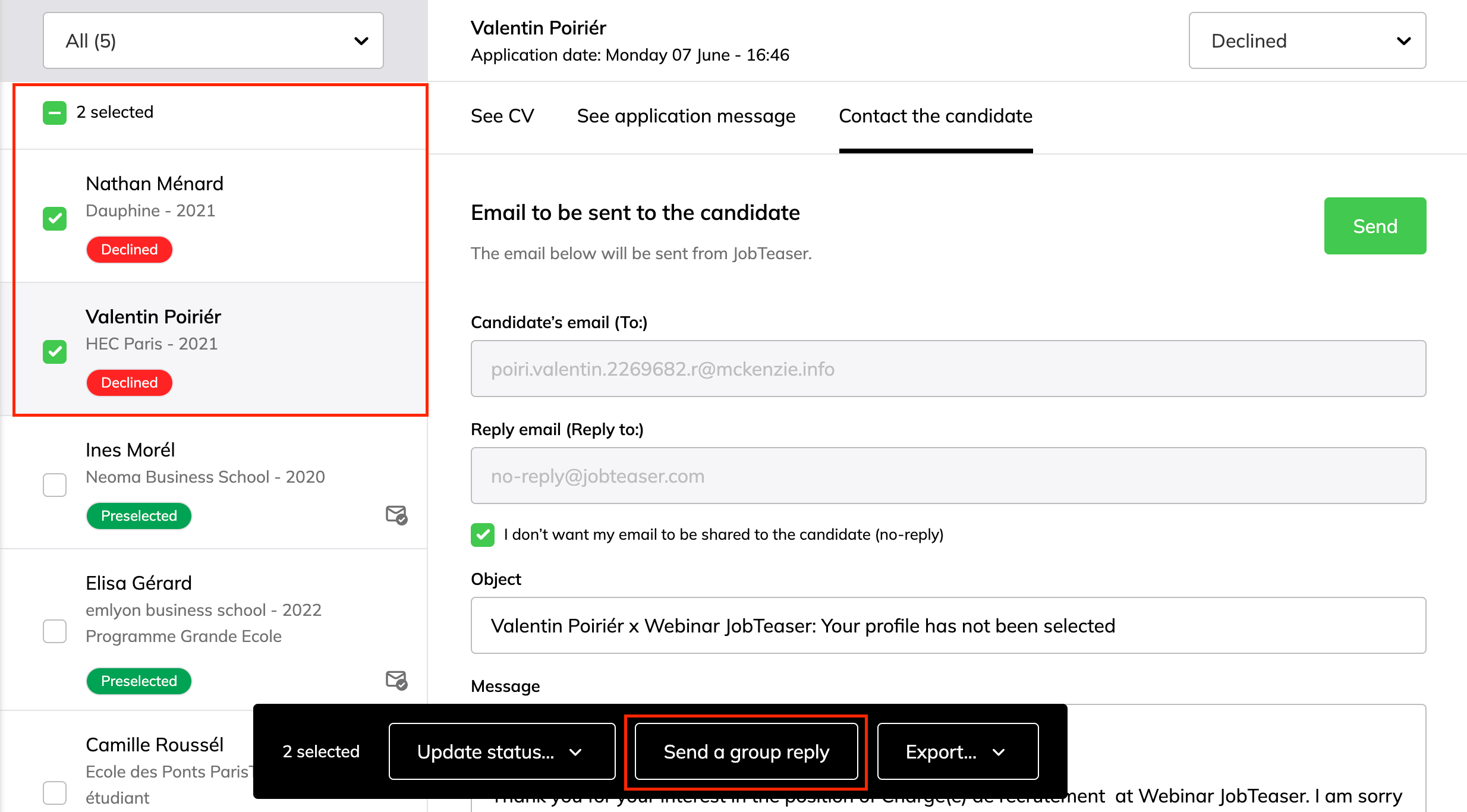
Tip: to save time, you can select all applicants with a 'declined' status for instance and click on 'Send a group reply'.
The message will only be sent to applicants who have not been contacted yet. Those who have already been contacted appear with the following logo next to their name:  .
.
Customize and save a reply email template
When you send an individual or group reply, an editable email template is provided.
If you want to edit it, click on 'Edit template for applications with status declined/preselected'.
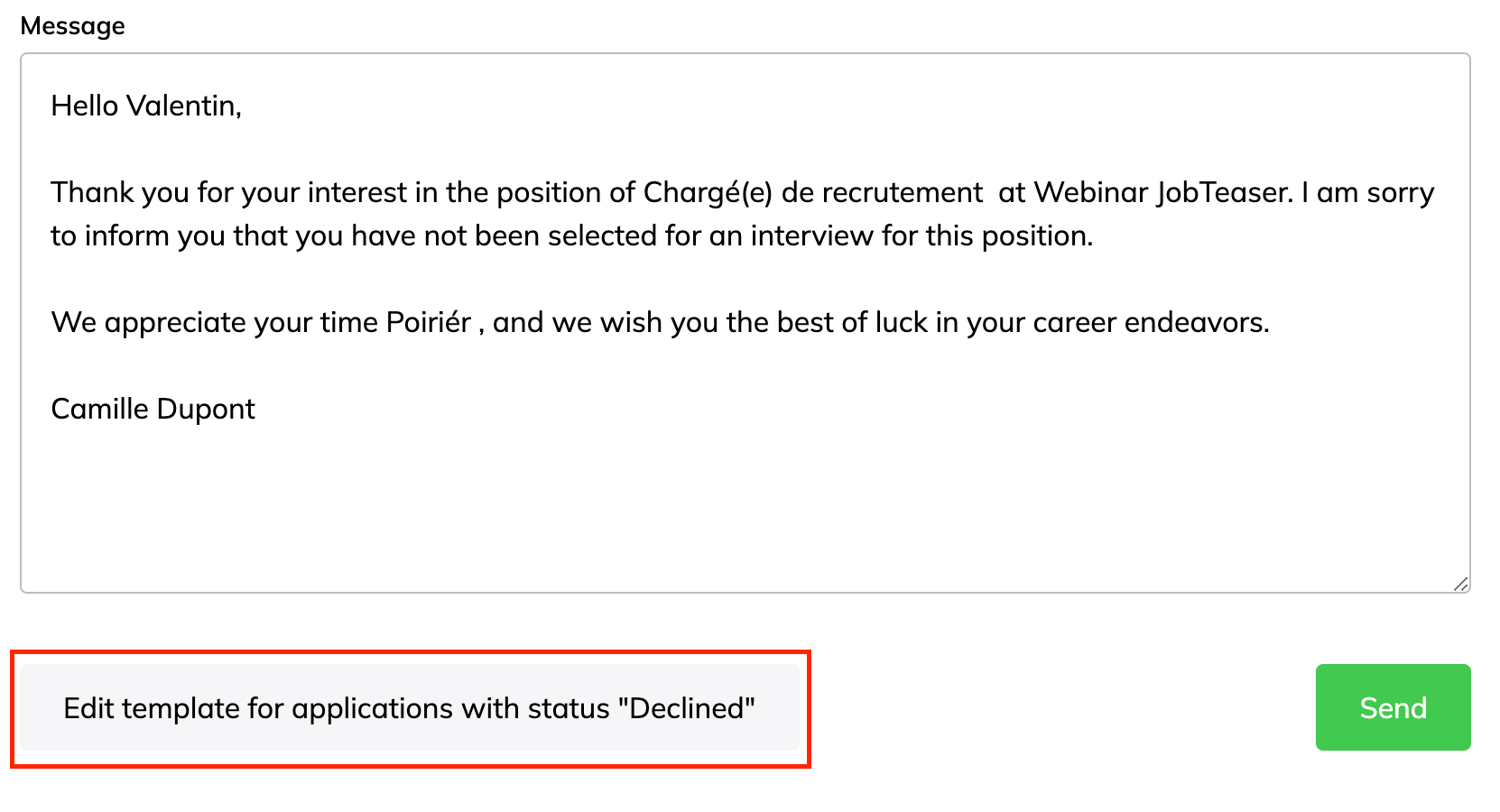
Important: If the return is grouped, it is necessary to use the variables at your disposal so that each email is customized according to the applicant. To do this, choose the appropriate variables by clicking directly on the tags indicated in the 'Available variables' box.
The variables that you can enter in the subject and the body of the email are :
#candidateFirstName for the candidate's first name
#candidateLastName for the candidate's name
#jobTitle for the title of the ad
Tip: if you send a negative reply, you can choose to have your address appear as 'no-reply' by ticking the box below:
Click on 'Save' to save this message so that it can appear by default when sending messages to applicants that are preselected or declined.
Note: If you have several recruiters using the application interface, don't worry! Each recruiter can update and save their own template.
Export applicants' CVs and emails
You can export the CVs and emails of applicants you want to contact and send your message from a generic corporate email address.
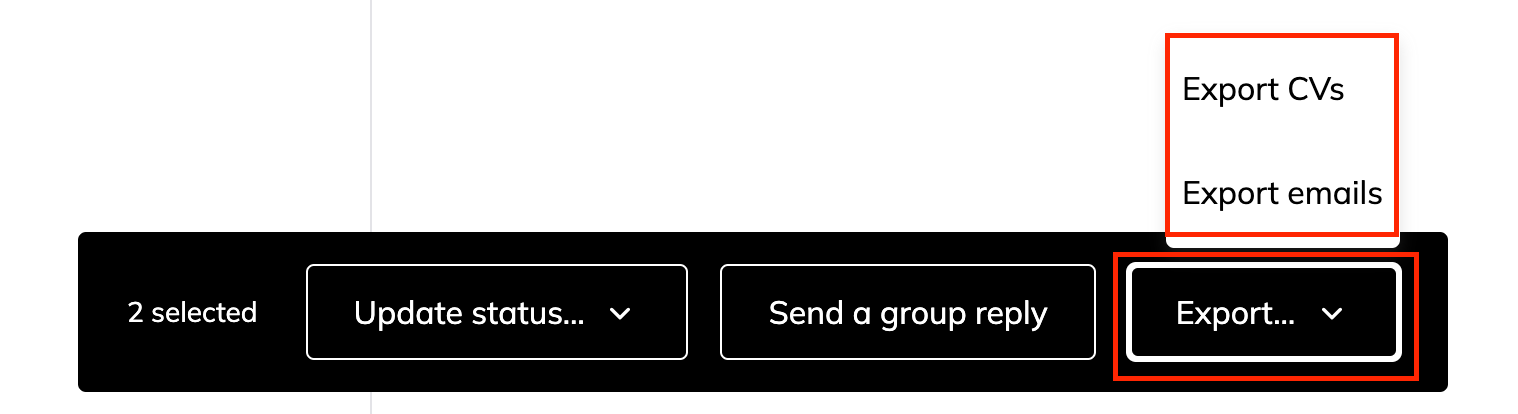
Select the applicants in the list and click on 'Export' and then on 'Export CVs' or 'Export emails'.
If you choose to export CVs, the message below will appear. Click on 'Start the export'.
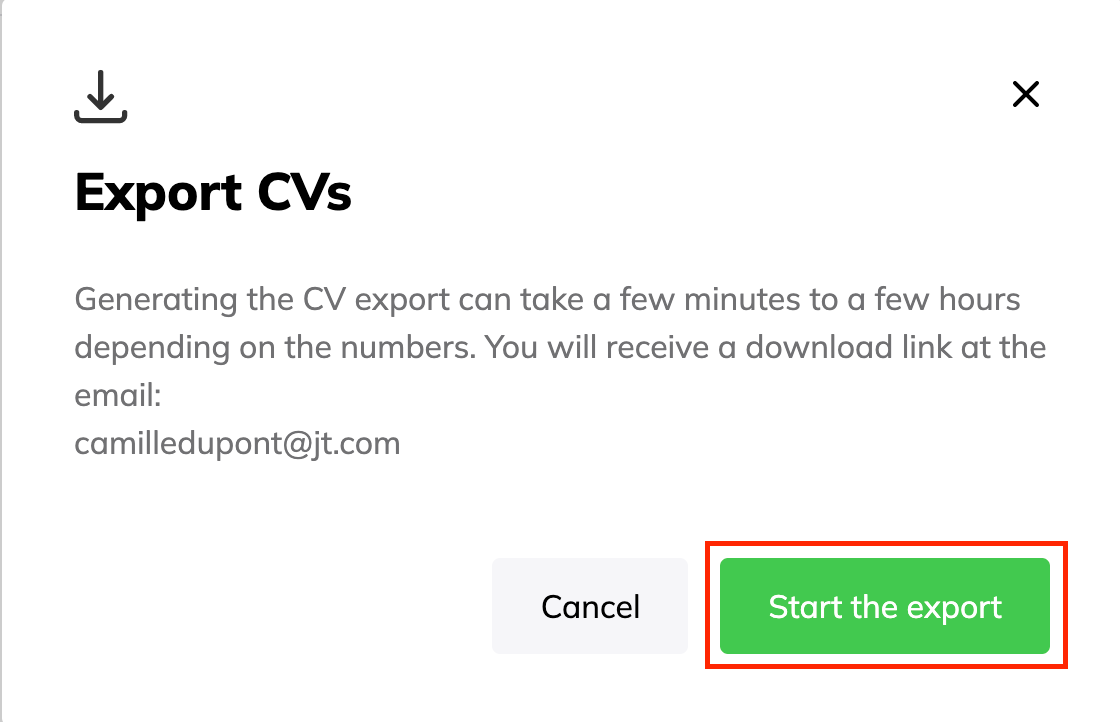
Exporting CVs is useful if you want to look at them on your computer and not via the JobTeaser platform.
Note that exporting may take a few minutes or several hours depending on the number of CVs you decide to upload.
If you choose to export the email addresses, the message below will appear. Click on 'Copy to clipboard'.
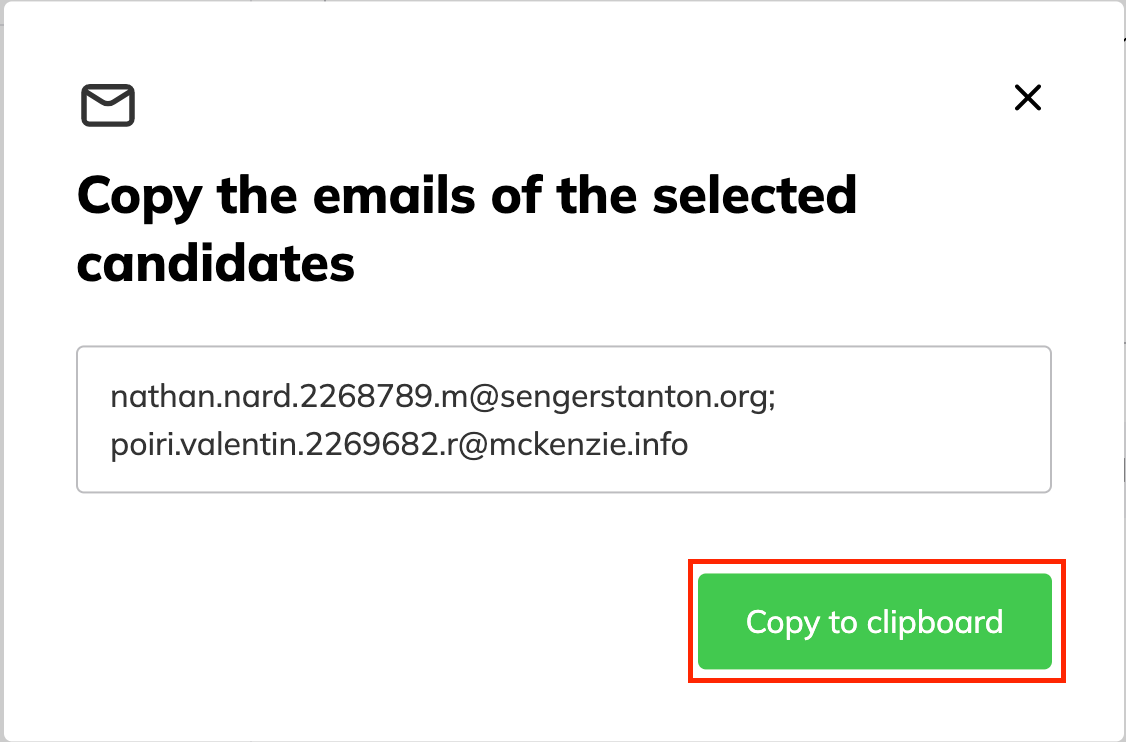
This feature is very useful if you want to send a group reply to applicants from your corporate email address.
After writing a message to inform applicants of your decision, you can paste the list into the blind copy (bcc) field of your email.
Note: if, because of your company's GDPR policy, you cannot receive the applicants' CVs for your job ads via email, please refer to this article to deactivate this option by default.